
My Allianz Broker Admin
Quick Start Guide

My Allianz is a personalised secure website that provides you with access to the Allianz digital tools you need. 
It’s simple, there’s not lots of usernames and passwords to remember.
It gives you a page where you can see all the tools you need in one place.

myTeam is an account management application that provides you the ability to manage and control the access that individuals have to My Allianz and the connected digital tools.

For your peace of mind, be reassured that the security of your information is at the forefront myAllianz.
Our team are here to help you Monday - Friday during office hours. 


As a Broker Admin for your organisation, you will oversee and control the access to My Allianz via myTeam for your colleagues. It’s your responsibility to create and manage the accounts of individuals who you’d like to access your organisation’s information in My Allianz and connected digital tools like the Digital Trading Hub

You can give individuals these roles: Broker Admin​ and Broker Standard​ users. ​You can update account details (name, email and telephone), manage access to applications for (coarse grain permissions) and delete accounts of Broker Standard user​s.

The first step on your journey starts with an email. You have four days to register on My Allianz after the email arrives. 

Click on Complete Registration.

To complete your registration, we need to do a quick security check to make sure it’s you.

To do this we'll:

1. Ask you to confirm your phone number.

2. Send a verification code to your phone.

3. Ask you to enter the verification code into our website when prompted.

4. Ask you to set your myAllianz password.

Once you have registered you will be able to access My Allianz through my.allianz.co.uk

We all forget our passwords from time to time; your My Allianz password is simple to reset.

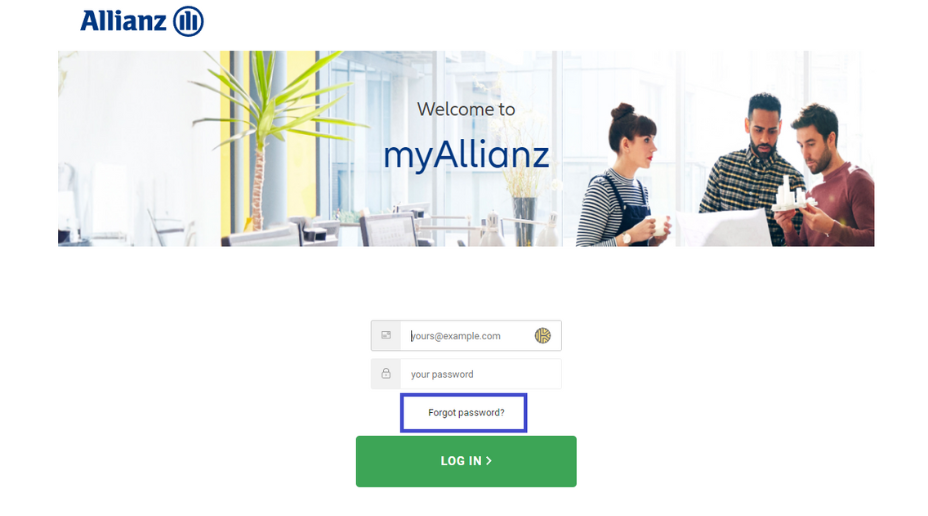
  1. Go to the log in page https://my.allianz.co.uk
  2. Click Forgot password?  It will send you an email with a link to reset your password. 
Screenshot from MyAllianz showing forgot password button

Visit my.allianz.co.uk and enter your email and password to log in to My Allianz.

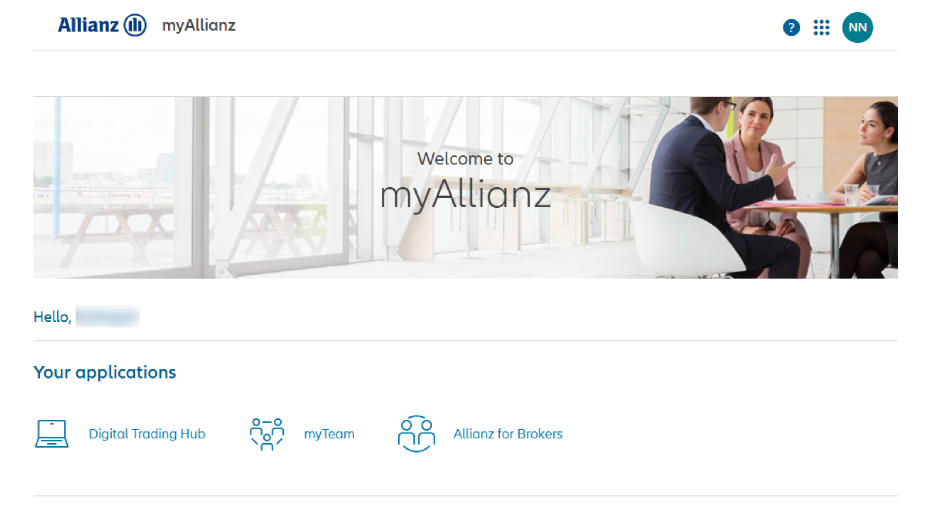
When you log in to My Allianz the first screen will be the dashboard.

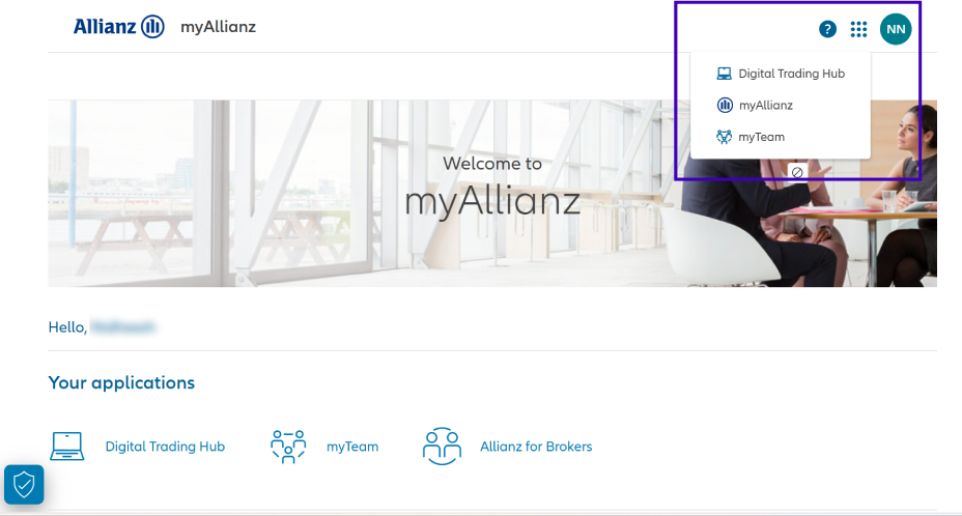
You can always navigate back there by clicking on the Allianz logo or by selecting the nine dots in the top right-hand corner of the page.

Screenshot from myAllianz of nine dots

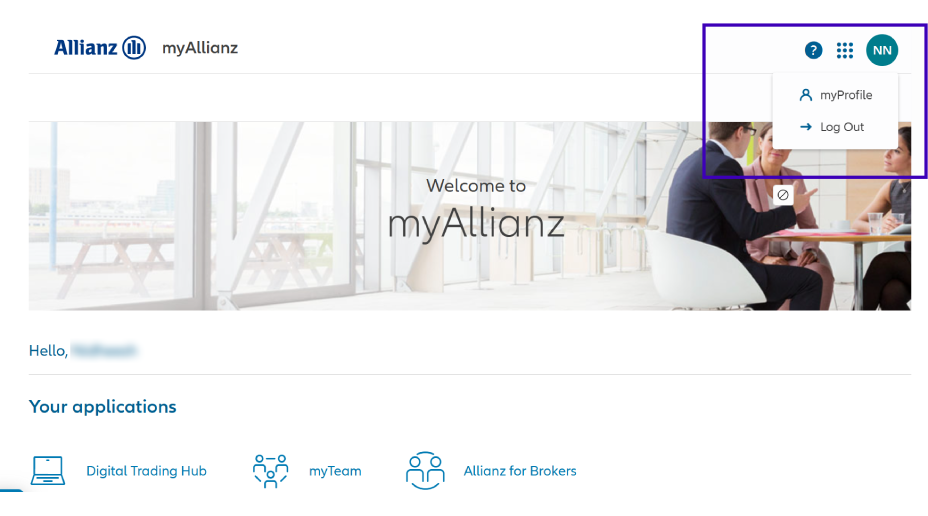
To check your details and which digital tools you have access to: 

  1. Click on the circle in the top right-hand corner of the page.
  2. Choose myProfile.
Screenshot from my Allianz of where myProfile can be selected

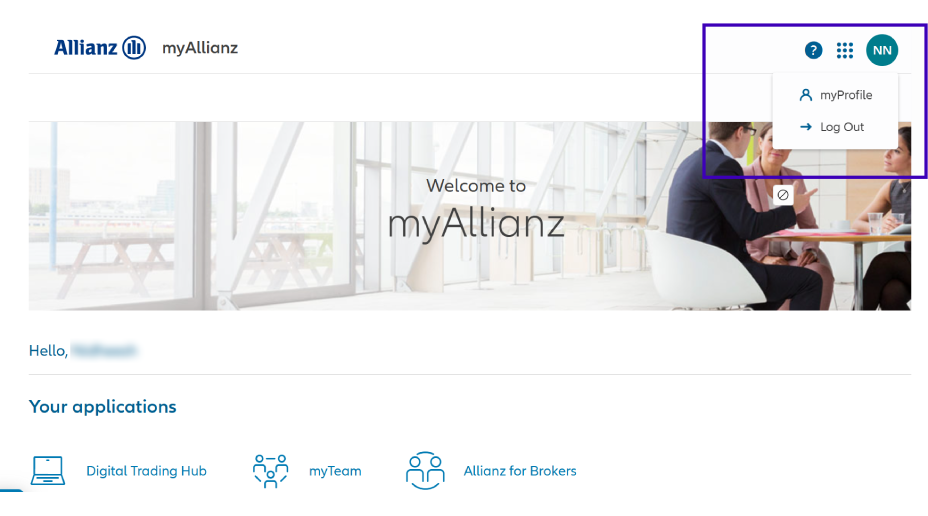
To log out:

  1. Click on the circle in the top right-hand corner of the page.
  2. Choose Log Out.

Screenshot from my Allianz of where myProfile and log out can be selected
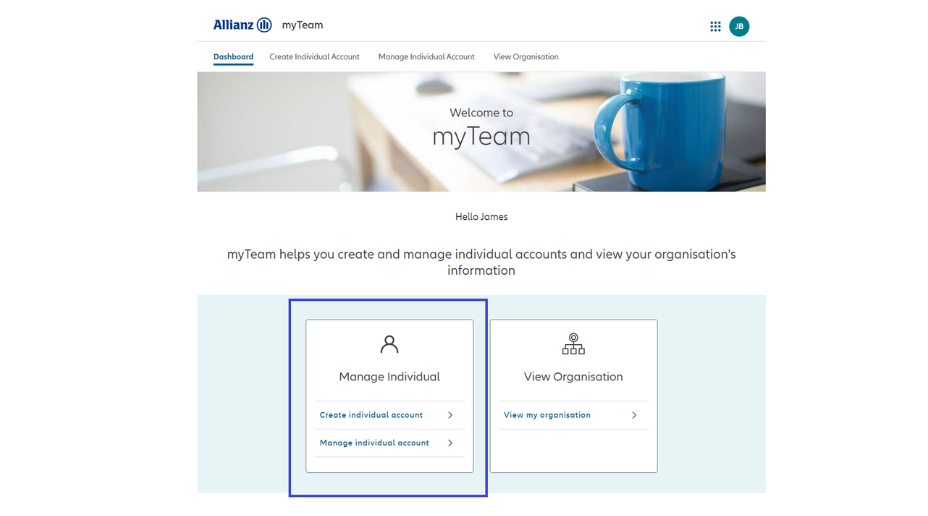
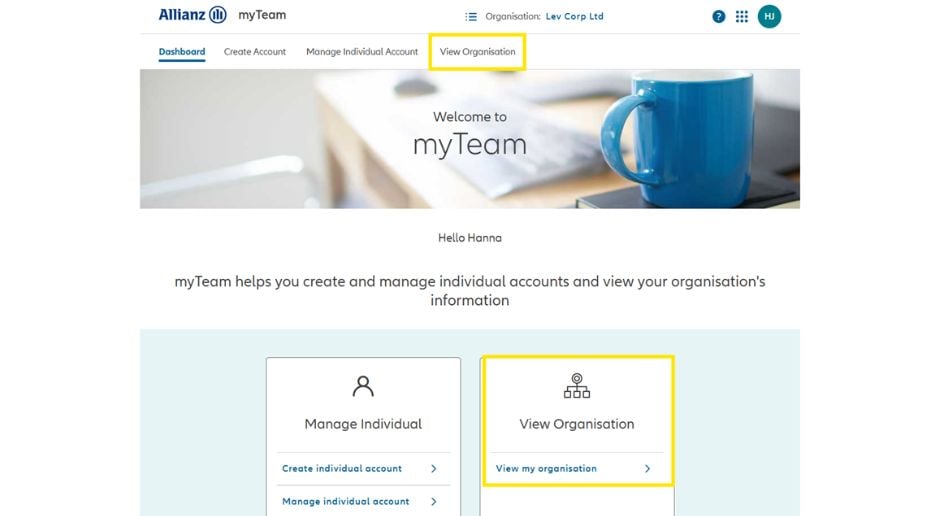
Clicking on the myTeam link on the dashboard or in the top navigation will take you to the myTeam dashboard.

Here you have the choice to create and manage existing individual accounts or view your organisation's information.
Screenshot from myAllianz of myTeam button

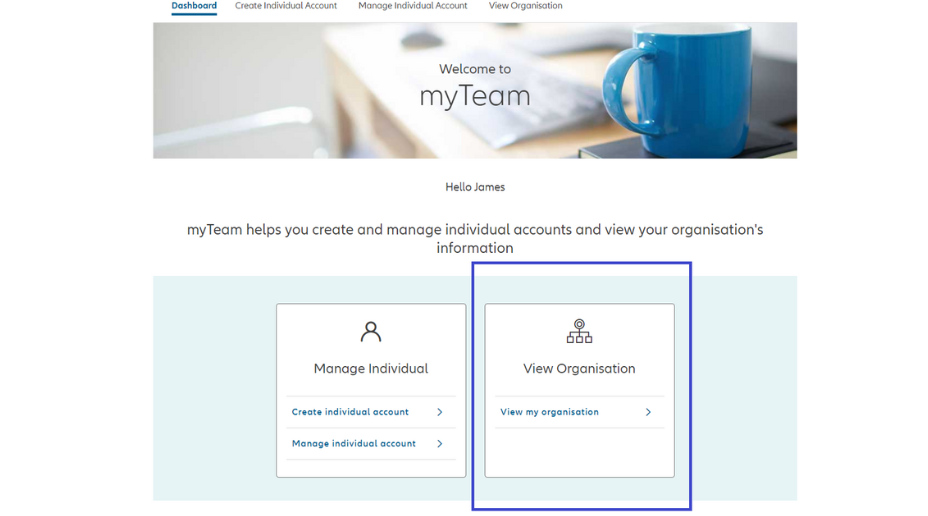
As a Broker Admin you are able to view the details we have of your organisation and a list of the other Broker Admins within your organisation. 

Click on the ‘View Organisation’ link in the top navigation or the link within the dashboard.

Screenshot from myAllianz of View organisation button

Before you create an individual account, you will need to know:

  • What their email address is.
  • The correct contact phone numbers for them.
  • If the employee is homebased or office/branch based. If they are a hybrid worker, please select the location where they spend the most time.

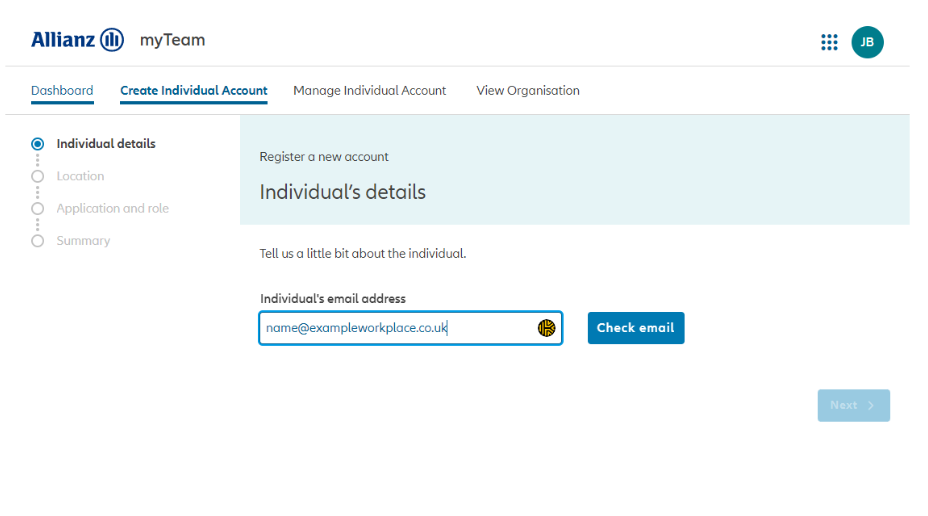
1. Click on Create individual account in the top navigation or using the link contained within the dashboard page.

2. On the screen presented enter the email address of the individual you are creating an account for.

3. Click the 'Check email' button. This checks to see if the email address is already associated with a My Allianz account.

Screenshot from myAllianz on create individual

4. Enter the individual's details in the form that's displayed.

5. Click next.

Screenshot from myAllianz entering the email address

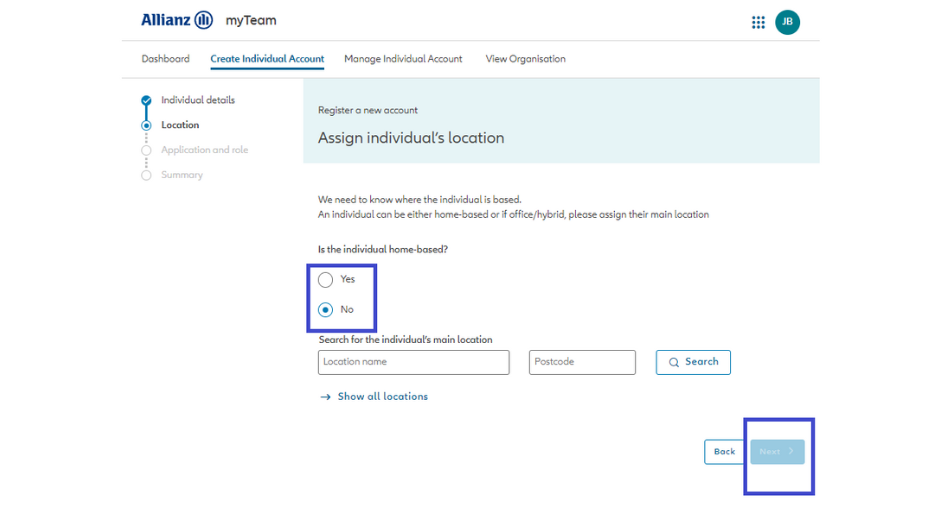
6. On the form, please select if the individual is homebased or search for the main location where the individual is based.  To search please enter the location name and if possible, the postcode. You can also select show all locations. 


Screenshot from myAllianz of entering details of an individual

7. Click Search.

8. A table will be displayed, select the location where this individual is based by using the circle button next to the location name.

If the location isn't visible, you can add one manually using the ‘Add location’ link. Add the location by completing the form, you can search for the address or enter it manually and add the location by click ‘add location’.

9. Click next.

10. Make sure the office is selected and click next.

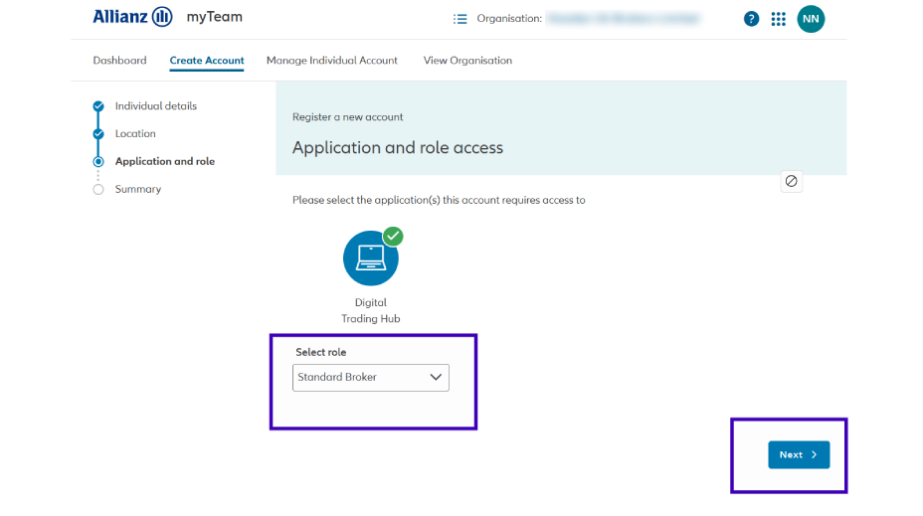
11. Click the icon of the application(s) that this individual requires access to (for example Inspection Hub).

12. Using the drop-down menu select the role which this individual requires for this specific application(s).

13. Click next.

14. Depending on the applications selected you will be asked to define the permission the individual requires. Once you have assigned the permissions then click submit and return to the profile.


Screenshot from myAllianz of selecting the individual's role from a drop down menu


15. You will be presented with a summary of the information entered for the individual you are creating.

16. Click invite - an invitation to register for My Allianz will be sent to the individual.

NOTE: If any of the information is incorrect on the summary page, please visit the manage individual account section to amend the details and invite the individual.

Before you create an individual account, you will need to know:

  • What their email address is.
  • The correct contact phone numbers for them.

  1. Click on Create Delegate Account in the top navigation or use the link contained within the dashboard page.
  2. On the screen presented enter the information required in the fields.
  3. Click Next.
  4. Click on the icon of the application(s) that this individual requires access to.
  5. Using the drop-down menu select the role which the individual requires for this specific application(s).
  6. Click the Next.
  7. Depending on the applications selected you will be asked to define the permissions the individual requires. Once you have assigned the permissions click Submit.
  8. You will be presented with a summary of the information entered for the individual you are creating.
  9. Click Invite an invitation to register for myAllianz will be emailed to the individual. 

As a Client Admin it is your responsibility to manage individual accounts and keep them up-to-date for your organisation. You’re able to view and manage individual accounts on their individual account page. On this page you can edit contact details and manage their application access.

To find an individual account page follow this process:

1. Click Manage Individual Account in the top navigation or the link contained within the dashboard.

2. Enter the email address of the individual account you are looking to manage.

3. Click search.

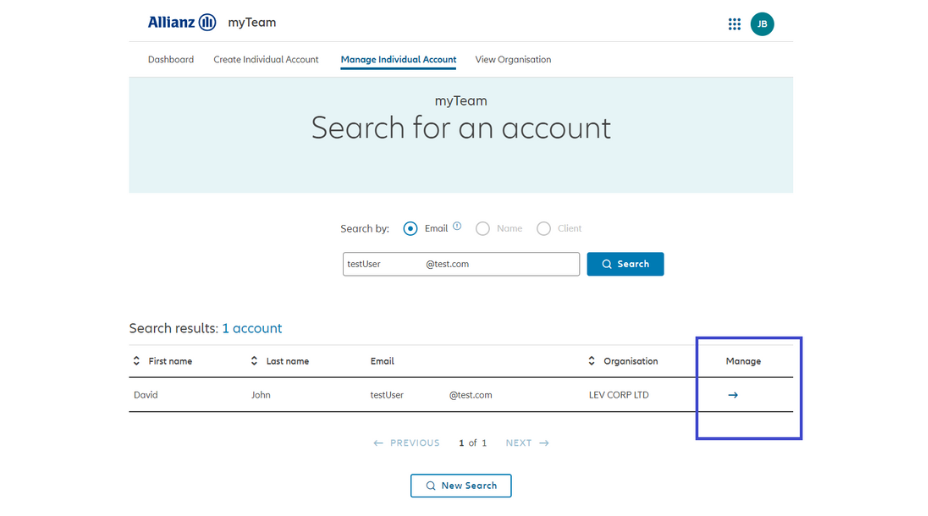
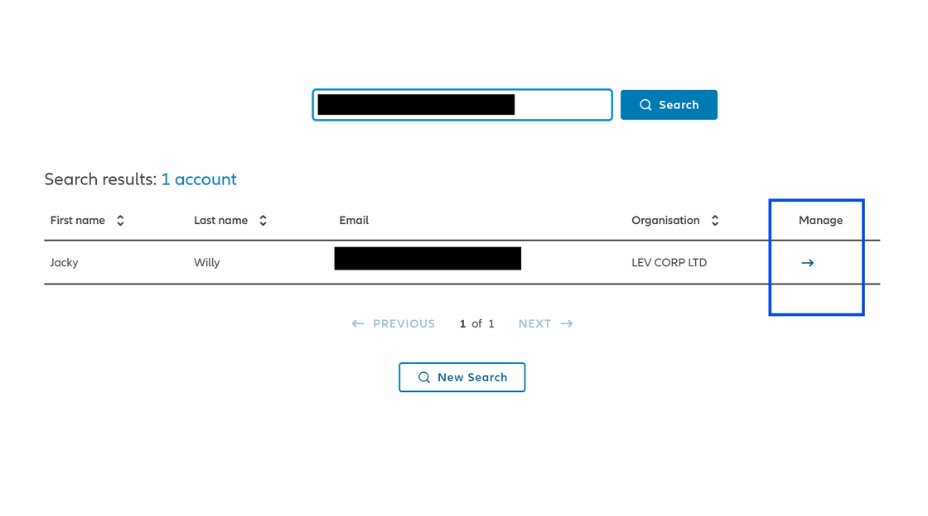
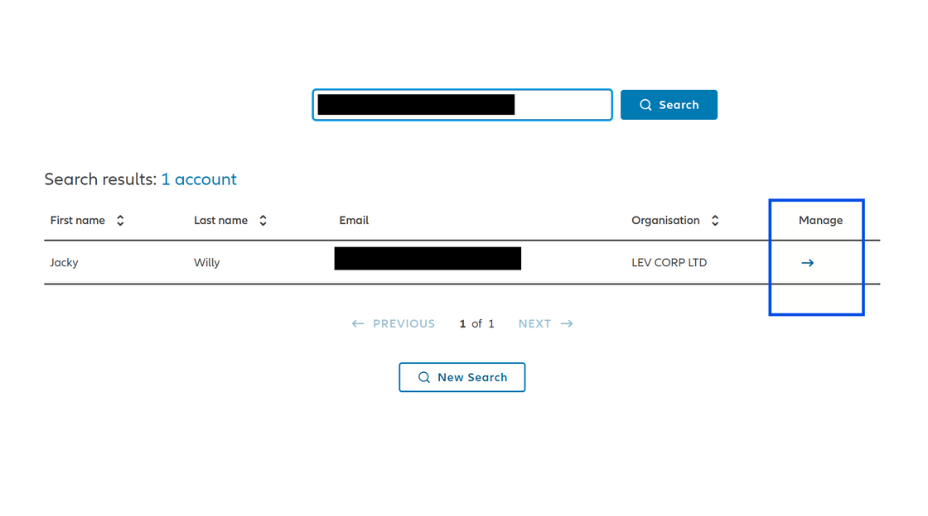
4. A table will be presented, to manage an account click on the arrow icon in the manage column.


Screenshot of myAllianz manage individual user

Edit individual details

1. Click on the pencil icon next to the individual's name.

2. On the pop-up, amend the details required and click Update.

3. Click Yes to confirm you would like to update this individual's account.

Screenshot  from myAllianz of editing individual details

Roles that are available are: 

1. Client Admin – Provided to individuals who required access to certain Allianz digital applications available through myAllianz and who oversee and control the myTeam account for an organisation.

2. Standard Client – Provided to individuals who require access to certain Allianz digital applications available through myAllianz. This allows individuals to view the organisation’s information, but they are unable manage the details and access of others.

3. Delegate Client Admin - Provided by organisations to individuals who require access to their organisations information within certain Allianz digital applications available through myAllianz. This role also provides them with the ability to oversee and control the myTeam account for that organisation. 

4. Delegate Standard Client – Provided by organisations to individuals who require access to their organisations information within certain Allianz digital applications available through myAllianz. 

Within the Account Access section of the manage individual page you will have different options to amend specific application information such as role and permissions the individual has within the application.
  1. Login to My Allianz
  2. Click on the myTeam application icon 
  3. Click Manage Individual Account in the top navigation or via the in-page link in the manage individual section
  4. Enter the email of the individual you wish to remove the role for and click search
  5. In the results table shown, click the arrow in the manage column next to the individual you would like to remove role for.
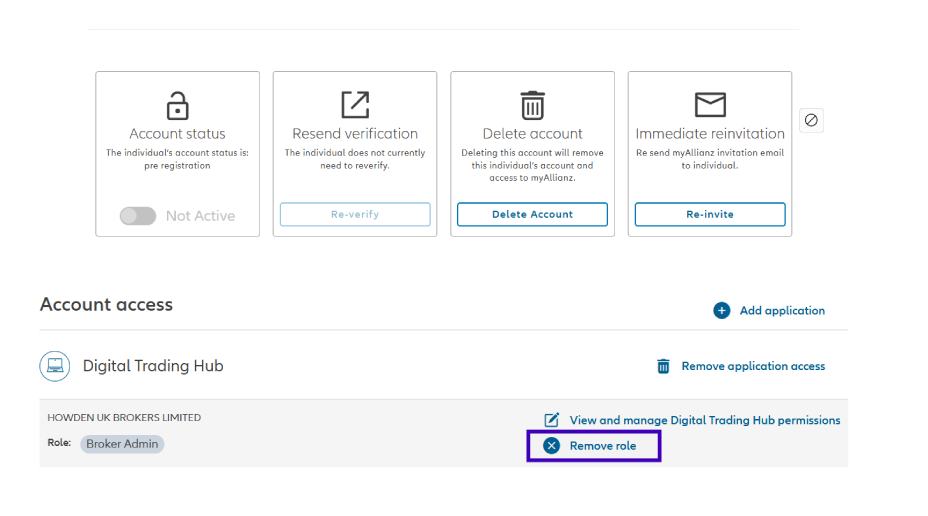
  6. In the Account access section find the role with the relevant application you would like to remove and click Remove role.
Screenshot  from myAllianz highlighting remove role
  1. Login to My Allianz.
  2. Click the myTeam application icon.
  3. Click manage individual account in the top navigation or via the in-page link in the manage individual section.
  4. Enter the full email address of the individual you wish to remove the role for and click search.
  5. In the results table shown, click the arrow in the manage column next to the individual you would like to remove the application for.
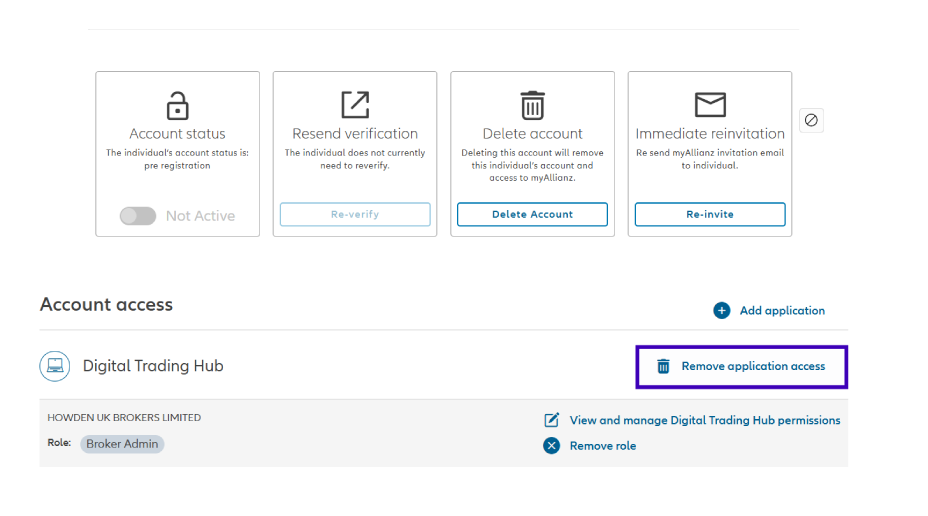
  6. In the Account access section of the manage individual account page, find the application you would like to remove and click the remove application access link.
Screenshot  from myAllianz highlighting remove application access
  1. Login to My Allianz.
  2. Click the myTeam application icon.
  3. Click manage individual account in the top navigation or via the in-page link in the manage individual section.
  4. Enter the email of the individual you wish to remove the role for and click Search.
  5. In the results table shown, click the arrow in the manage column next to the individual you would like to delete.
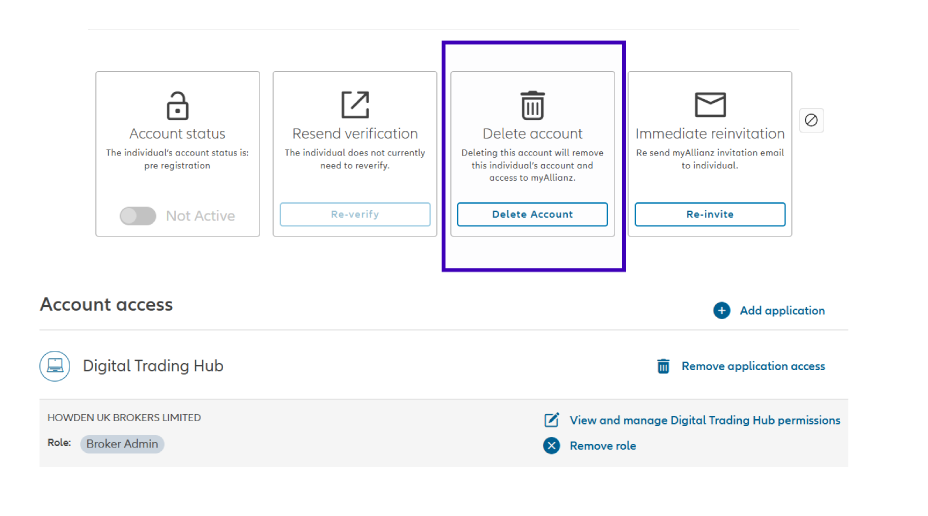
  6. Click on the Delete account button.
Screenshot  from myAllianz highlighting delete account
  1. Login to My Allianz.
  2. Click the myTeam application icon.
  3. Click manage individual account in the top navigation or via the in-page link in the manage individual section.
  4. Enter the email of the individual you wish to remove the role for and click search.
  5. In the results table shown, click the arrow in the manage column next to the individual you would like to downgrade the role for.
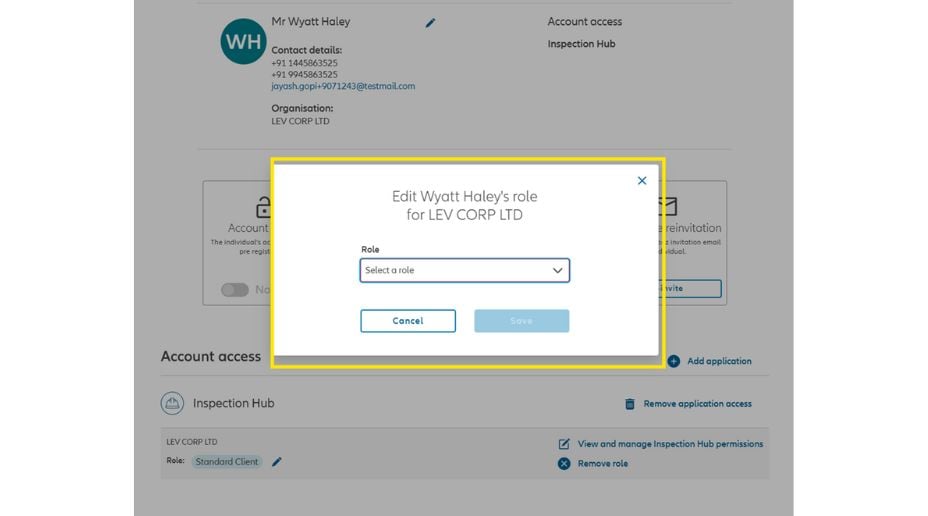
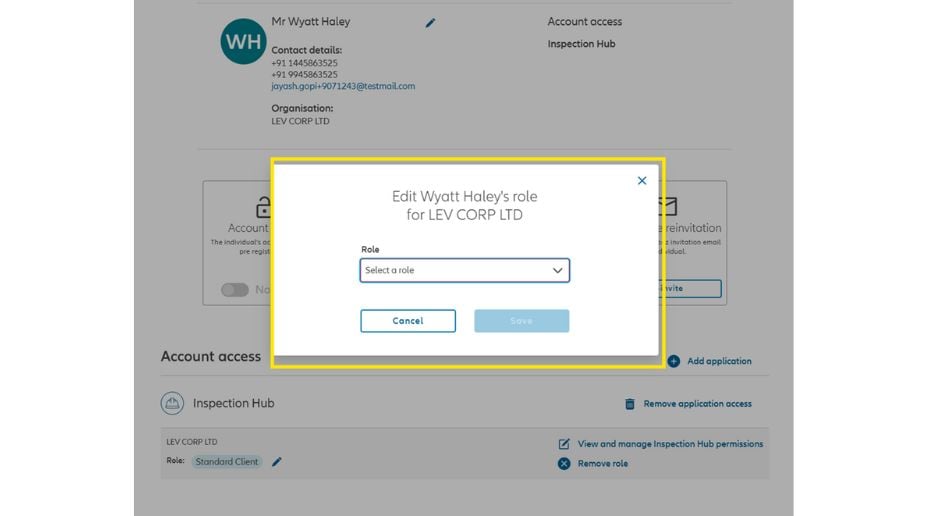
  6. On the manage individual account page within the Account access section, find the application and role you would like to amend and click the pencil icon next to the role.
Screenshot  from myAllianz highlighting delete account
7. On the manage individual account page within the Account access section, find the application and role you would like to amend and click the pencil icon next to the role.
 
8. Click select a role. To downgrade the individual's access change from Client Admin to Standard Client.  This will remove their access to be able to create and manage other people. 
Screenshot  from myAllianz highlighting delete account
  1. Login to My Allianz.
  2. Click the myTeam application icon.
  3. Click manage individual account in the top navigation or via the in-page link in the manage individual section.
  4. Enter the email of the individual you wish to remove the role for and click search.
  5. In the results table shown, click the arrow in the manage column next to the individual you would like to downgrade the role for.
  6. On the manage individual account page within the Account access section, find the application and role you would like to amend and click the pencil icon next to the role.
Screenshot  from myAllianz highlighting delete account
7. On the manage individual account page within the Account access section, find the application and role you would like to amend and click the pencil icon next to the role.
 
8. Click select a role. To upgrade the individual's access change from Standard Client to Client Admin.  This will grant them access to be able to create and manage other people and they will have the same level of access as you have. 
Screenshot  from myAllianz highlighting delete account
  1. Login to My Allianz
  2. Click the myTeam application icon
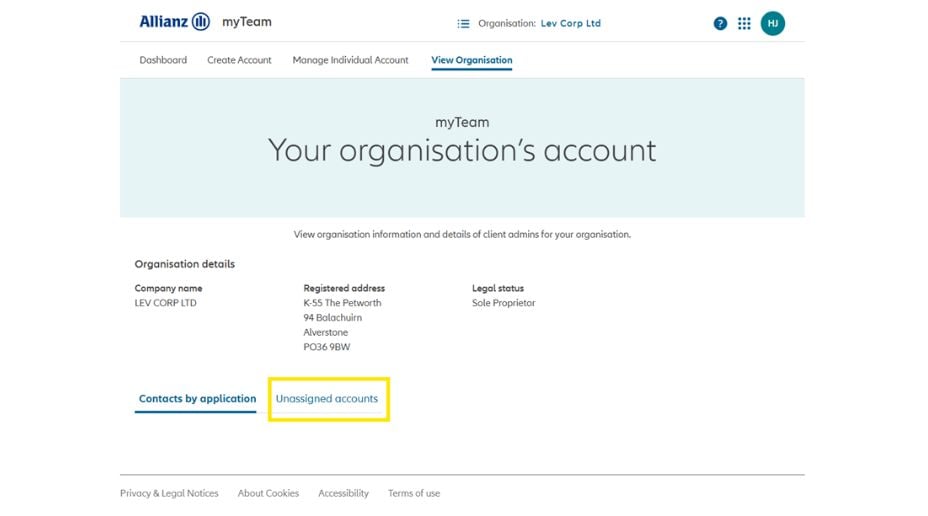
  3. Click View Organisation in the top navigation or the view my organisation link within the view organisation section of the page.
Screenshot  from myAllianz highlighting delete account
Screenshot  from myAllianz highlighting unassigned accounts

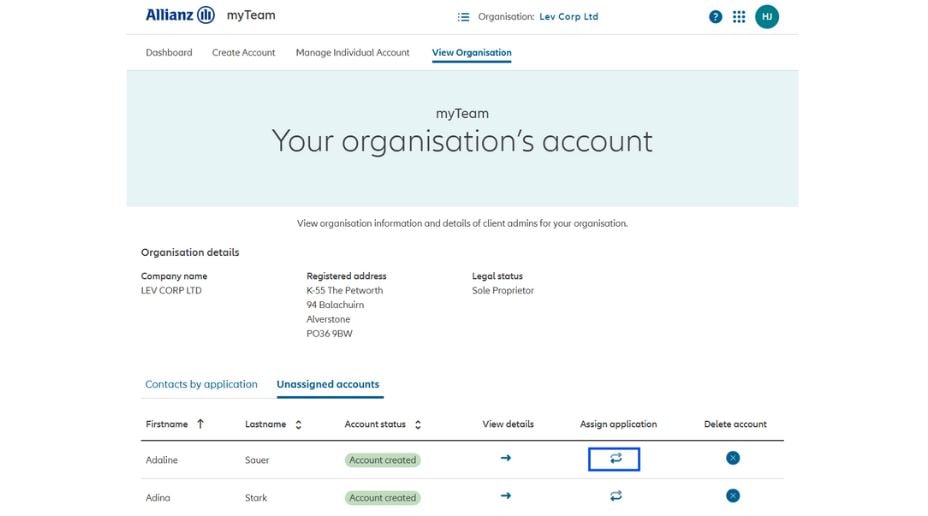
4. To view accounts that are connected with your organisation but have not been assigned to an application. Click on Unassigned accounts. 

5. This will bring up a list of accounts. 

6. To assign the accounts click on the arrows in the Assign application column. 

Screenshot  from myAllianz highlighting details of unassigned accounts

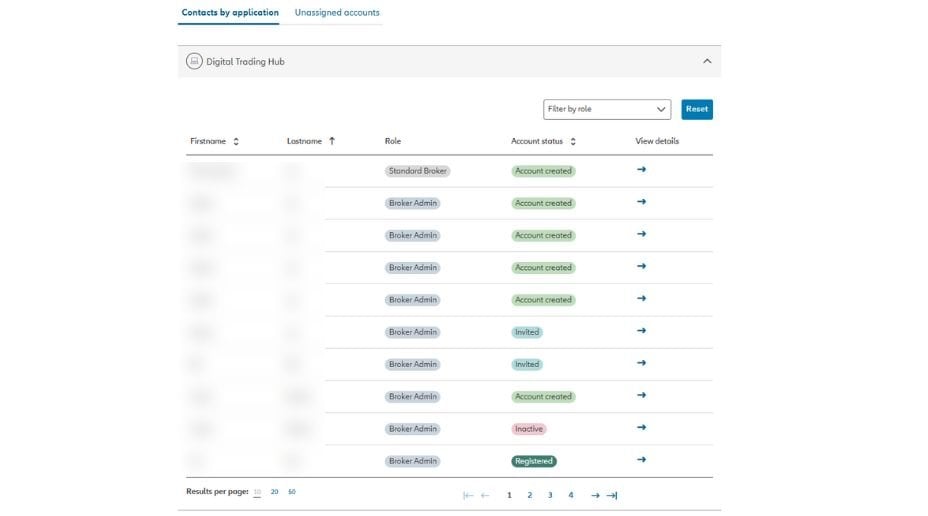
To check the contact details, role and account status of individuals that are connected with your organisation click on Contacts by application. 

Here you can see the role they have and can chase up any individuals who have not yet created their account. 

Screenshot  from myAllianz highlighting details of unassigned accounts

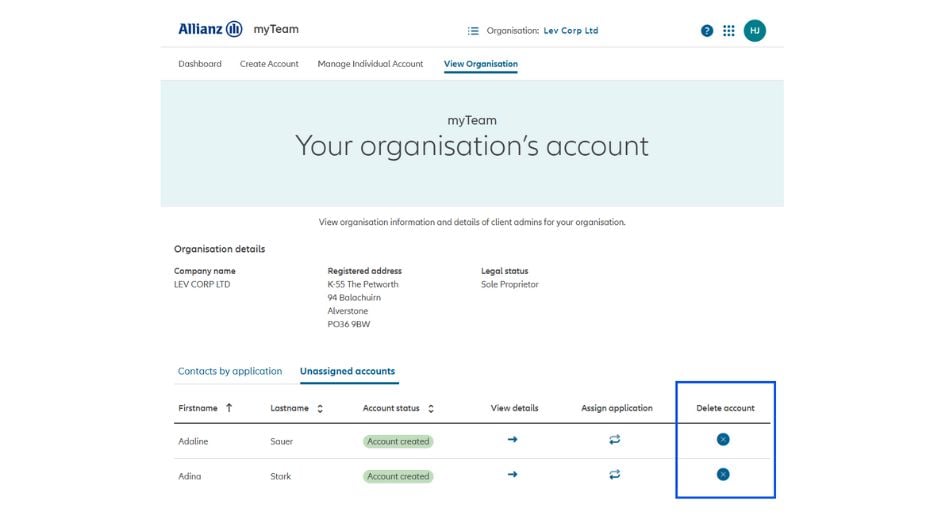
It's important to do some admin and remove unassigned accounts. 

To delete an unassigned account, click on the blue circle with an x inside in the Delete account column
A pop up box will ask you to confirm this action. 


Screenshot  from myAllianz highlighting the x where you can delete an account