
My Allianz Client Admin  

My Allianz, first launched in 2024, is evolving into your online destination for accessing all the Allianz tools you need in one place.

The next exciting step in this journey is the launch of the MID portal. Over the next three years, My Allianz will continue to grow, introducing new features and functionality designed to make your digital experience easier, more secure, and to help you navigate the breadth of what Allianz has to offer. 

Our new MID platform has a friendlier user interface and provides an additional layer of security. This allows you to navigate the tool in an easier and more secure way, protecting your customers’ data. Access to all policies will be based on user permissions, which will be given to each My Allianz user depending on their account role: Client Admin or Standard Client.

It’s simple, there’s not lots of usernames and passwords to remember. 

myTeam is an account management application that provides you with the ability to manage and control the access that individuals have to My Allianz and the connected digital tools. Keeping your information secure is our priority
 

As a Client Admin for your organisation, you will oversee and control the access to My Allianz via myTeam for your colleagues. It’s your responsibility to create and manage the accounts of individuals who you’d like to access your organisation’s information in My Allianz and connected digital tools, like the MID Portal.

You can create users with either Client Admin or Standard Client roles. ​You can update account details (name, email and telephone), manage access to applications and delete user accounts.


The first step on your journey starts with an email. You have four days to register on My Allianz after the email arrives. 

Click on Complete Registration.

To complete your registration, we need to do a quick security check to make sure it’s you.

To do this we'll:

1. Ask you to confirm your phone number or email address.

2. Send a verification code to your phone or email address.

3. Ask you to enter the verification code into our website when prompted.

4. Ask you to set your My Allianz password.

Once you have registered you will be able to access My Allianz through my.allianz.co.uk

We all forget our passwords from time to time; your My Allianz password is simple to reset.

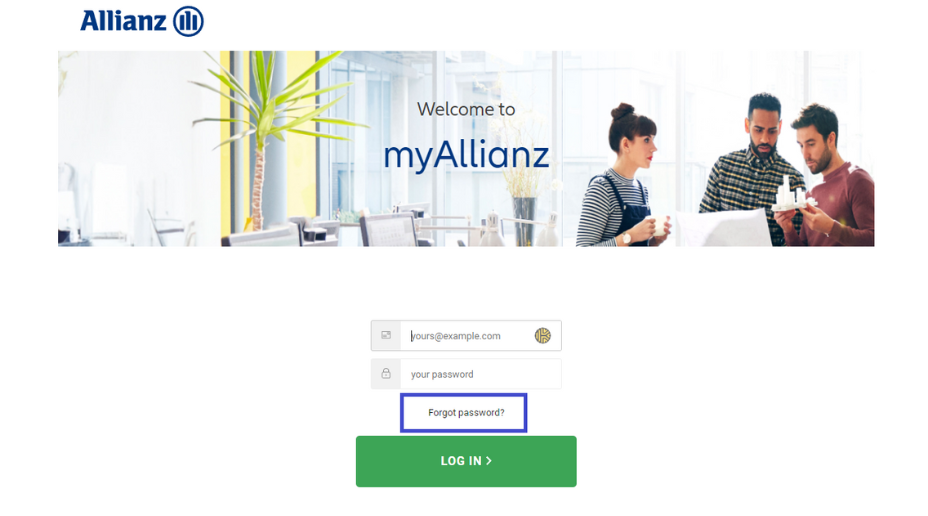
  1. Go the log in page https://my.allianz.co.uk
  2. Click Forgot password?  it will send you an email with a link to reset your password. 
Screenshot from MyAllianz showing forgot password button

Visit my.allianz.co.uk and enter your email and password to log in to My Allianz.

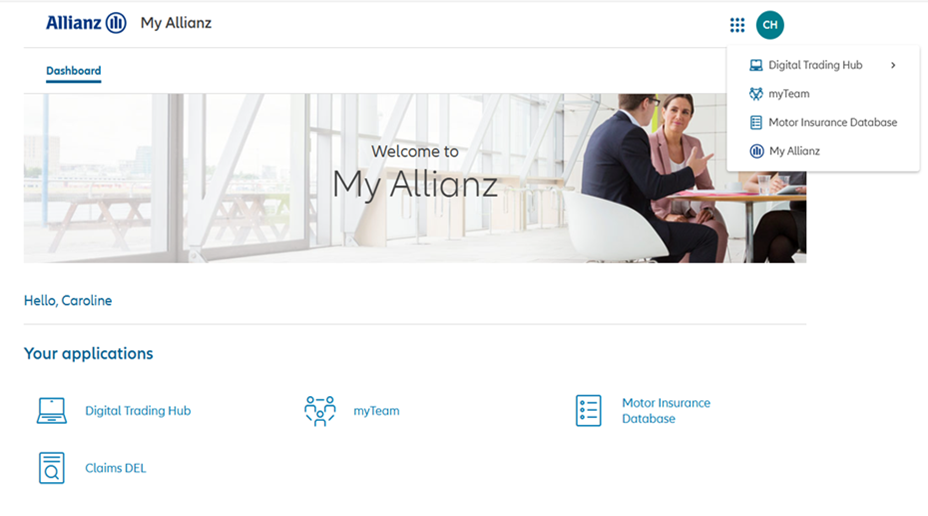
When you log in to My Allianz the first screen will be the dashboard.

You can always navigate back there by clicking on the Allianz logo or by selecting the nine dots in the top right-hand corner of the page.

Screenshot from myAllianz of nine dots

To check your details and which digital tools you have access to: 

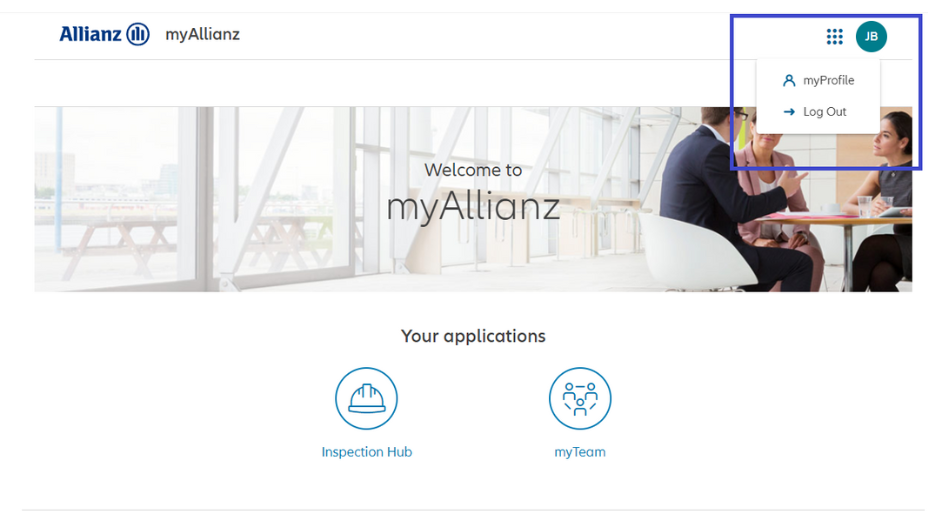
  1. Click on the circle in the top right-hand corner of the page, with your intials.
  2. Choose myProfile.
Screenshot from my Allianz of where myProfile can be selected

To log out:

  1. Click on the circle in the top right-hand corner of the page.
  2. Choose Log Out.

Screenshot from my Allianz of where myProfile and log out can be selected
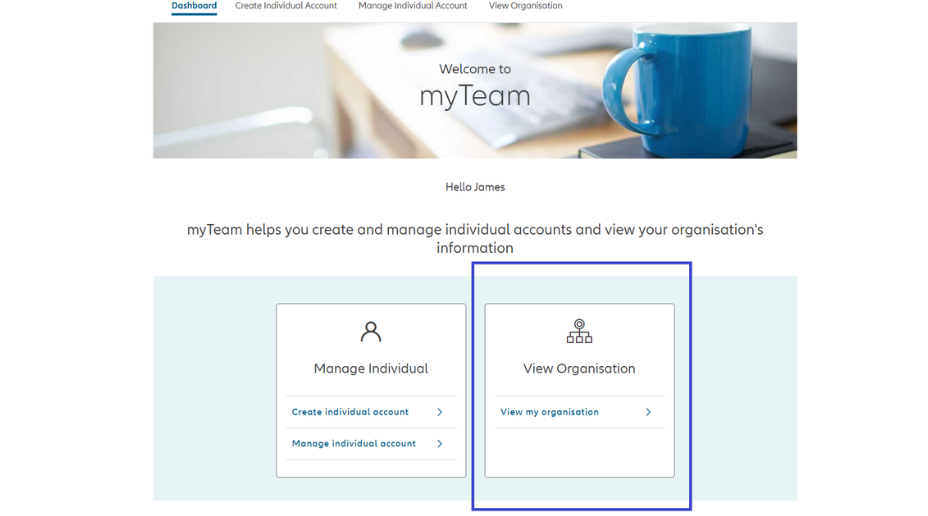
Clicking on the myTeam link on the dashboard or in the top navigation will take you to the myTeam dashboard.

Here you have the choice to create and manage existing individual accounts or view your organisation's information.
Screenshot from myAllianz of myTeam button


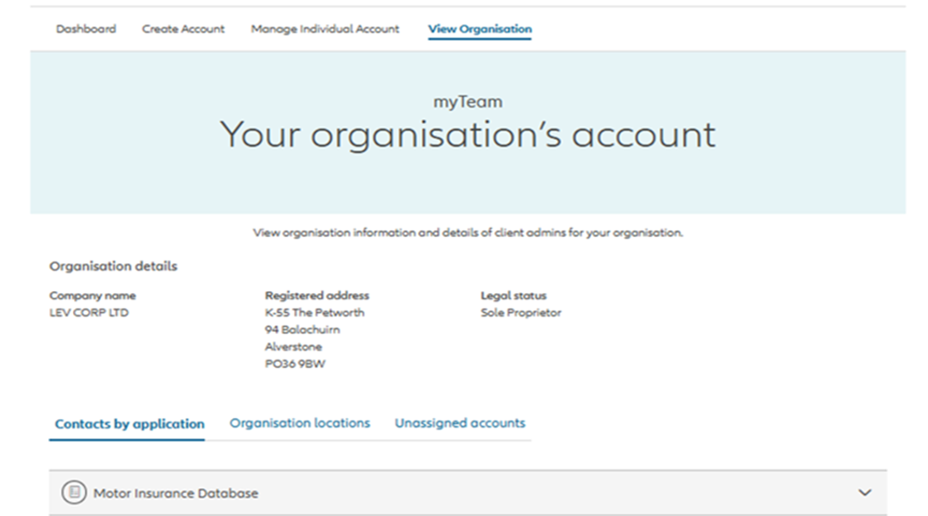
As a Client Admin you are able to view the details we have of your organisation and a list of the other Client Admins within your organisation. 

To view the contact details of other Client Admins in your organisation click on the arrow within the view details column next to their name.

Then simply click on the ‘View Organisation’ link in the top navigation or the link within the dashboard.

Screenshot from myAllianz of View organisation button

You’ll then be taken to a screen showing the overview of your organisation. You can view contacts associated with the MID application, organisational locations and unassigned accounts, 

Screenshot from myAllianz of View organisation button

Before you create an individual account, you will need to know:

  • What their email address is.
  • The correct contact phone numbers for them.
  • If the employee is homebased or office/branch based. If they are a hybrid worker, please select the location where they spend the most time.

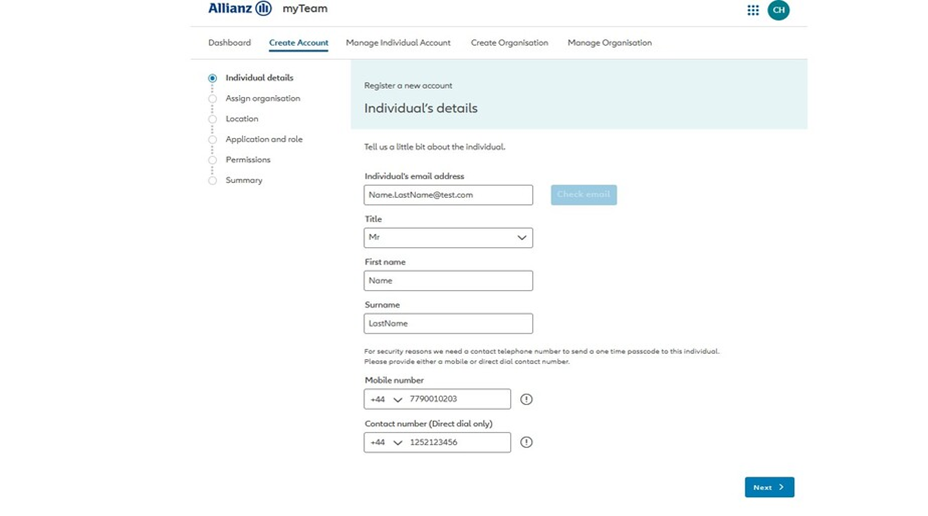
1. Click on Create Individual Account in the top navigation or using the link contained within the dashboard page.

2. On the screen presented enter the email address of the individual you are creating an account for.


Screenshot from myAllianz on create individual


3. Click the 'Check email' button. This checks to see if the email address is already associated with a My Allianz account.

4. Enter the individual's details in the form that's displayed.

Screenshot from myAllianz entering the email address

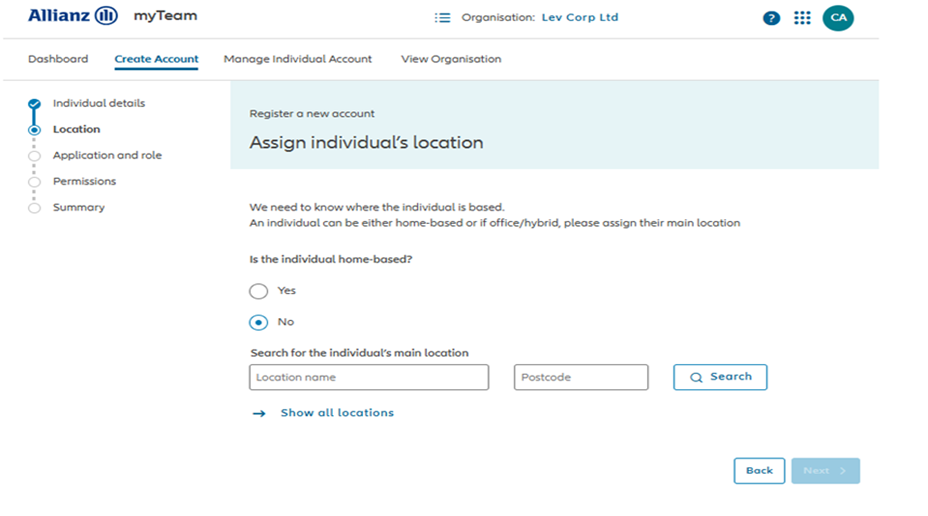
5. You’ll then need to assign the individual’s location. Select if the individual is home-based or otherwise. You can search the location by location name or postcode.

Select the correct location and then click ‘Next’

Screenshot from myAllianz of entering details of an individual

Select the correct location and then click ‘Next’

6. You then need to select the application that the user needs access to, in this case the Motor Insurance Database (MID)


Screenshot from myAllianz of entering details of an individual

Click on the icon and then select the relevant role from the drop-down menu and click ‘Next’

Screenshot from myAllianz of entering details of an individual

7. You’ll then need to add the relevant policies for the user. To do this, click on the ‘+ Add Policies’ button.

Screenshot from myAllianz of entering details of an individual

You will see the policies which can be added. Click on the blue arrows to add them then click ‘Continue’ (You can add up to 30 policies at a time).

If at this point you see any policies have errors then contact the MID Helpdesk.

8. You'll then see the entitlements screen.

Screenshot from myAllianz of selecting the individual's role from a drop down menu


On this screen you can use the toggles to allow the user you are creating to set permissions for another user for the relevant policies. You can also remove the user’s access to a particular policy. To view the shared users on the account click on the number to view:

Once finished, click ‘Next’. You'll see a message confirming the policies have been added successfully


Screenshot from myAllianz of selecting the individual's role from a drop down menu


9. Click next.

10. You’ll then be taken to a ‘Manage Entitlements’ screen with the newly added Policies. On that screen there will be a ‘Submit’ button which will direct to a summary page showing the information entered for the individual being created. 

11. Click invite - an invitation to register for My Allianz will be sent to the individual.

NOTE: If any of the information is incorrect on the summary page, please visit the manage individual account section to amend the details and invite the individual.

As a Client Admin it is your responsibility to manage individual accounts and keep them up-to-date for your organisation. You’re able to view and manage individual accounts on their individual account page. On this page you can edit contact details and manage their application access.

To find an individual account page follow this process:

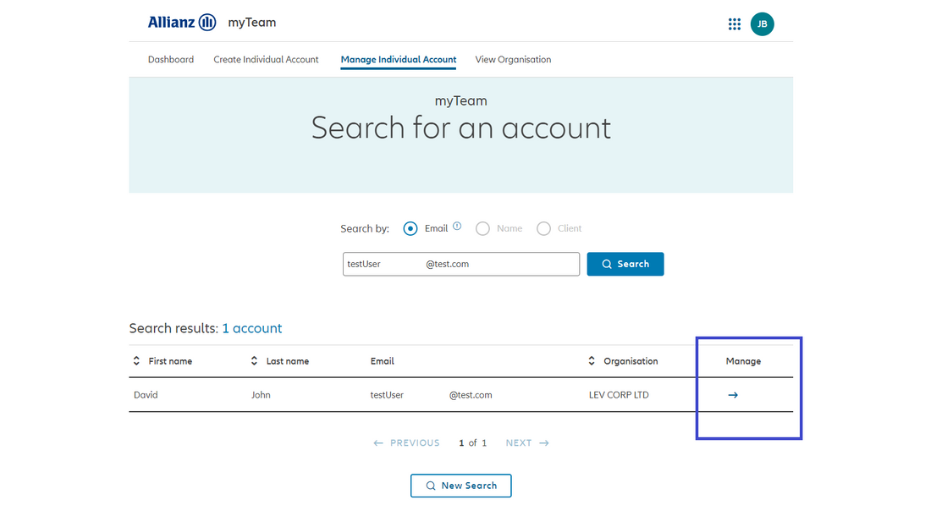
1. Click Manage Individual Account in the top navigation or the link contained within the dashboard.

2. Enter the email address of the individual account you are looking to manage.

3. Click search.

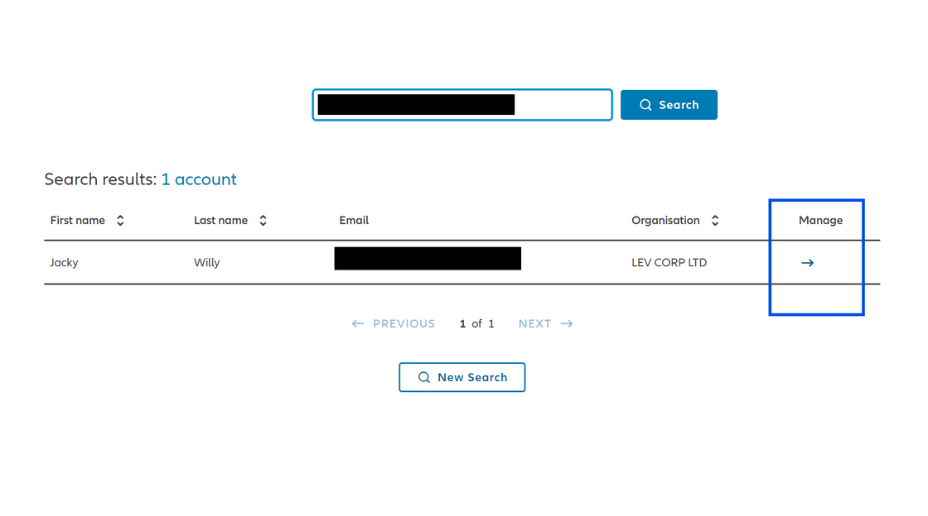
4. A table will be presented, to manage an account click on the arrow icon in the manage column.

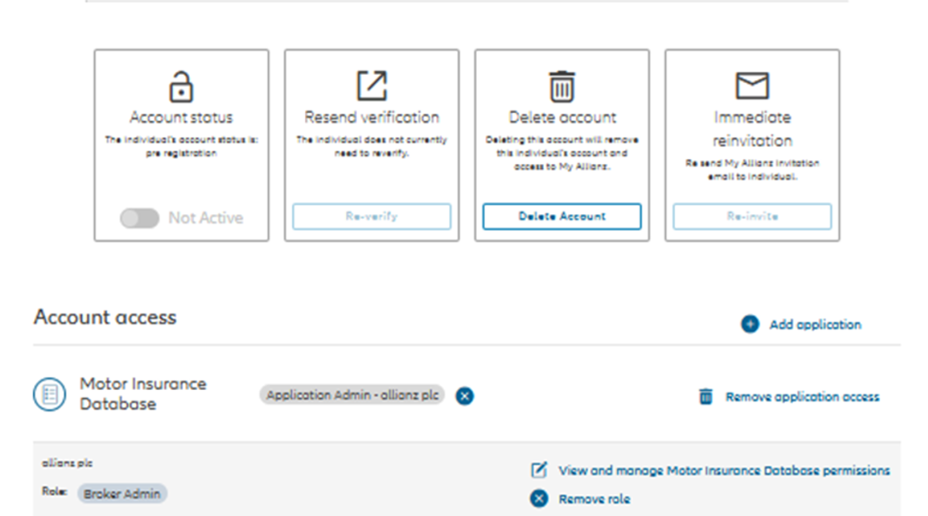
From the next screen you can update the user’s personal and/or account details by clicking on the pencil icon. You can also add an application or remove application access, as well as view the Account Activity log.

Screenshot  from myAllianz of editing individual details
Screenshot of myAllianz manage individual user

Roles that are available are: 

1. Client Admin – Provided to individuals who required access to certain Allianz digital applications available through My Allianz and who oversee and control the myTeam account for an organisation.

2. Standard Client – Provided to individuals who require access to certain Allianz digital applications available through My Allianz. This allows individuals to view the organisation’s information, but they are unable manage the details and access of others.

  1. Login to My Allianz
  2. Click on the myTeam application icon 
  3. Click Manage Individual Account in the top navigation or via the in-page link in the manage individual section
  4. Enter the email of the individual you wish to remove the role for and click search
  5. In the results table shown, click the arrow in the manage column next to the individual you would like to remove role for.
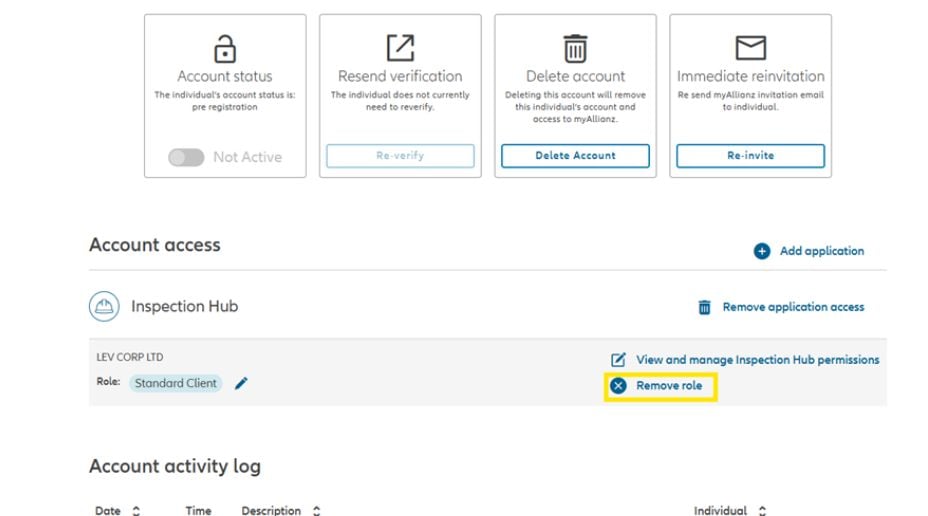
  6. In the Account access section find the role with the relevant application you would like to remove and click Remove role.
Screenshot  from myAllianz highlighting remove role
  1. Login to My Allianz.
  2. Click the myTeam application icon.
  3. Click manage individual account in the top navigation or via the in-page link in the manage individual section.
  4. Enter the full email address of the individual you wish to remove the role for and click search.
  5. In the results table shown, click the arrow in the manage column next to the individual you would like to remove the application for.
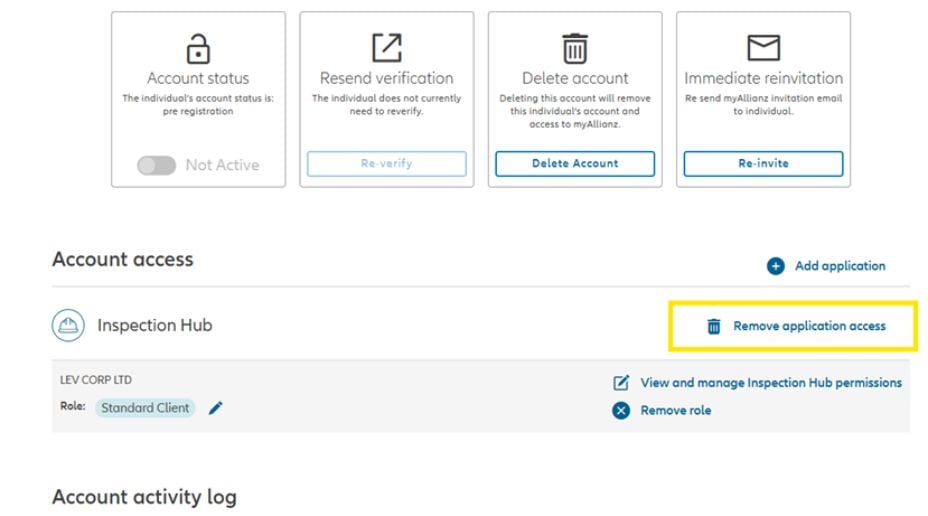
  6. In the Account access section of the manage individual account page, find the application you would like to remove and click the remove application access link.
Screenshot  from myAllianz highlighting remove application
  1. Login to My Allianz.
  2. Click the myTeam application icon.
  3. Click manage individual account in the top navigation or via the in-page link in the manage individual section.
  4. Enter the email of the individual you wish to remove the role for and click Search.
  5. In the results table shown, click the arrow in the manage column next to the individual you would like to delete.
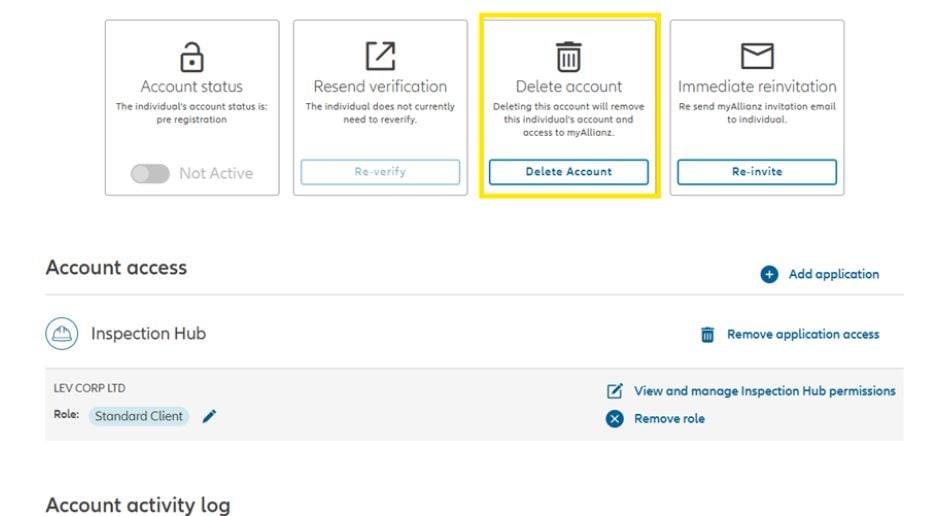
  6. Click on the Delete account button.
Screenshot  from myAllianz highlighting delete account
  1. Login to My Allianz.
  2. Click the myTeam application icon.
  3. Click manage individual account in the top navigation or via the in-page link in the manage individual section.
  4. Enter the email of the individual you wish to remove the role for and click search.
  5. In the results table shown, click the arrow in the manage column next to the individual you would like to downgrade the role for.
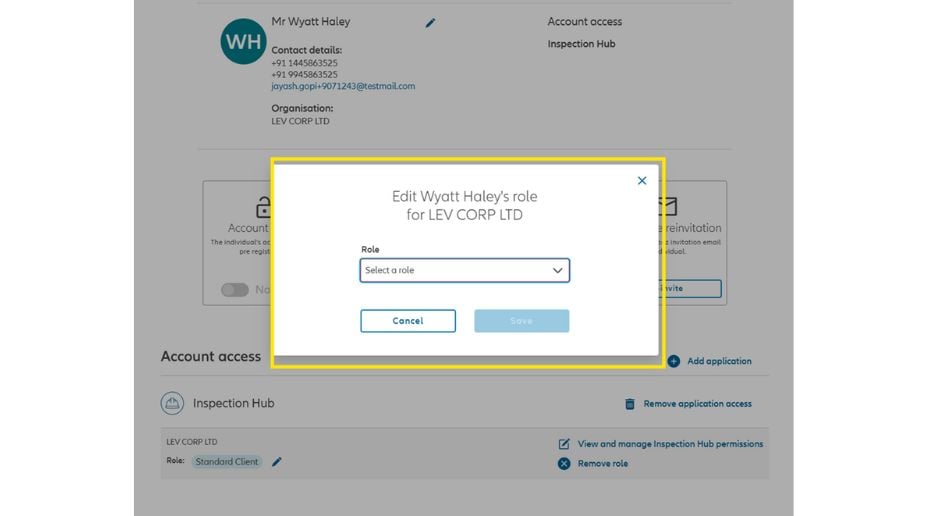
  6. On the manage individual account page within the Account access section, find the application and role you would like to amend and click the pencil icon next to the role.
Screenshot  from myAllianz highlighting delete account
7. On the manage individual account page within the Account access section, find the application and role you would like to amend and click the pencil icon next to the role.
 
8. Click select a role. To downgrade the individual's access change from Client Admin to Standard Client.  This will remove their access to be able to create and manage other people. 
Screenshot  from myAllianz highlighting delete account